


A POS terminal looks like a good addition to your catalog. The sample prints a receipt, the unit price fits your budget, and the supplier is ready to quote. Then a retailer asks whether it works with the software they already use, whether the power adapter is included, and whether they can order the same setup for their next store.
Those questions affect what you can sell, what you need to keep in stock, and how much support each sale will take. Use this Android POS hardware checklist to choose a model your customers have a reason to buy, compare quotes on the same basis, and verify the configuration before you place a bulk order.
1. Choose a Model for the Customers You Already Serve
Start with a workflow you see often enough to sell repeatedly. If your customers are cafés and small retailers, a fixed counter with frequent receipt printing may be a sensible starting point. If you serve merchants who need checkout away from a counter, start with a handheld. Give your sales team one clear use case and a demo they can reproduce.
| What your customer needs | NORYOX model to evaluate | What your sales team should demonstrate |
|---|---|---|
| Staff need to move around and hand customers a printed receipt. | NB55 handheld POS with a 5.5-inch display and built-in 58 mm printer. | Complete a sale away from the counter and check that the receipt is readable on 58 mm paper. |
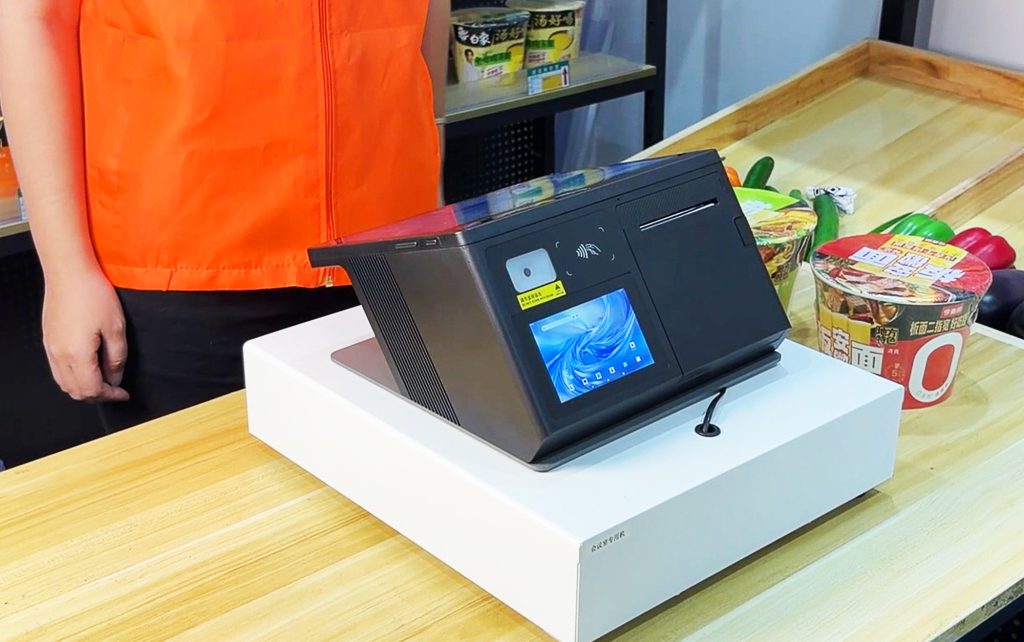
| A fixed counter needs frequent receipt printing and a customer-facing screen. | DP11 desktop POS with a built-in 80 mm auto-cutter printer and customer display. | Run several sales in succession and show the order total, printed receipt, and automatic cut. |
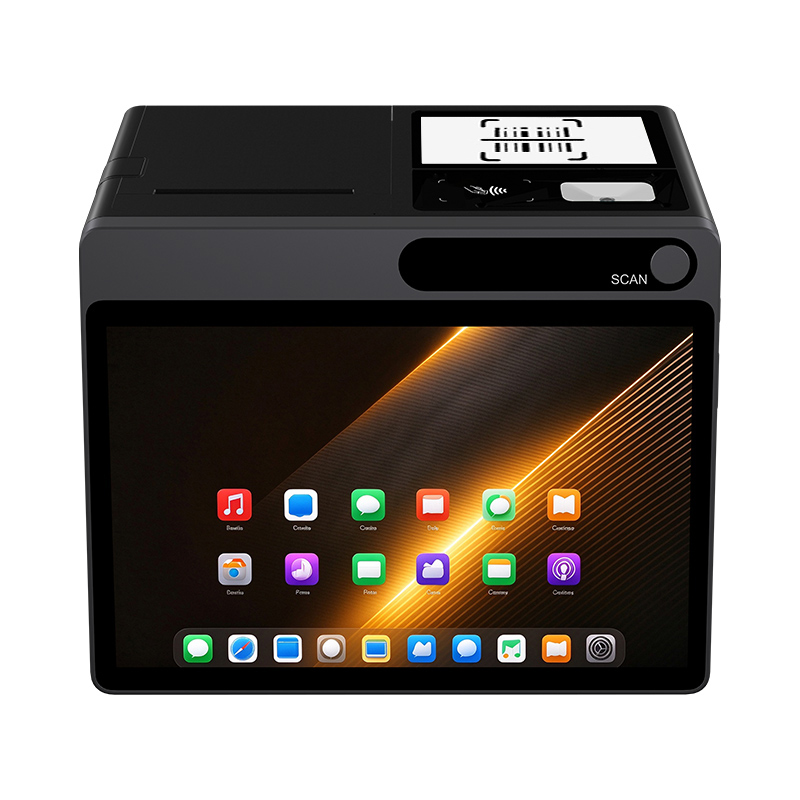
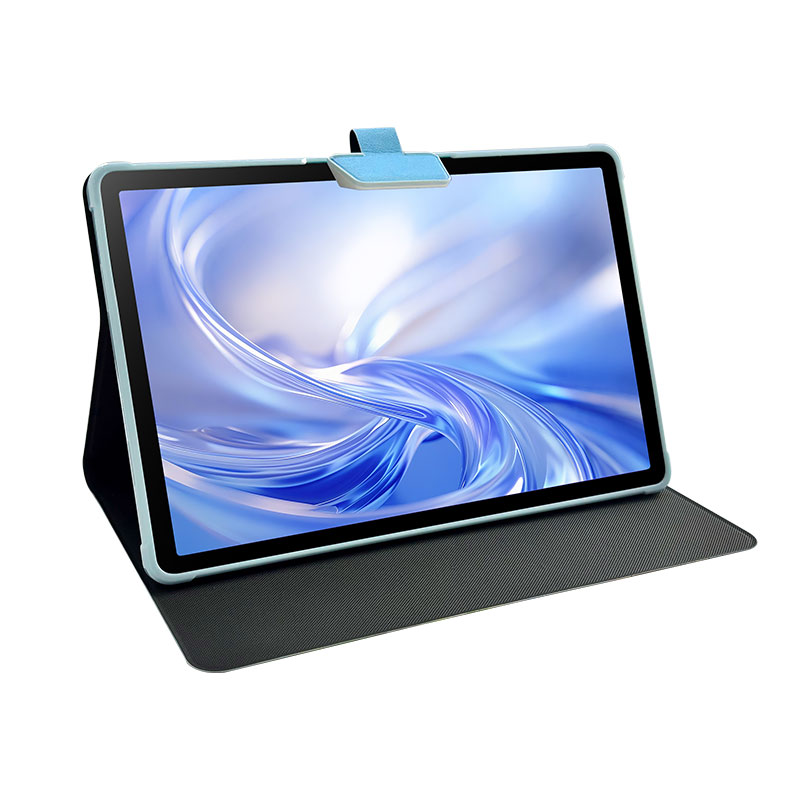
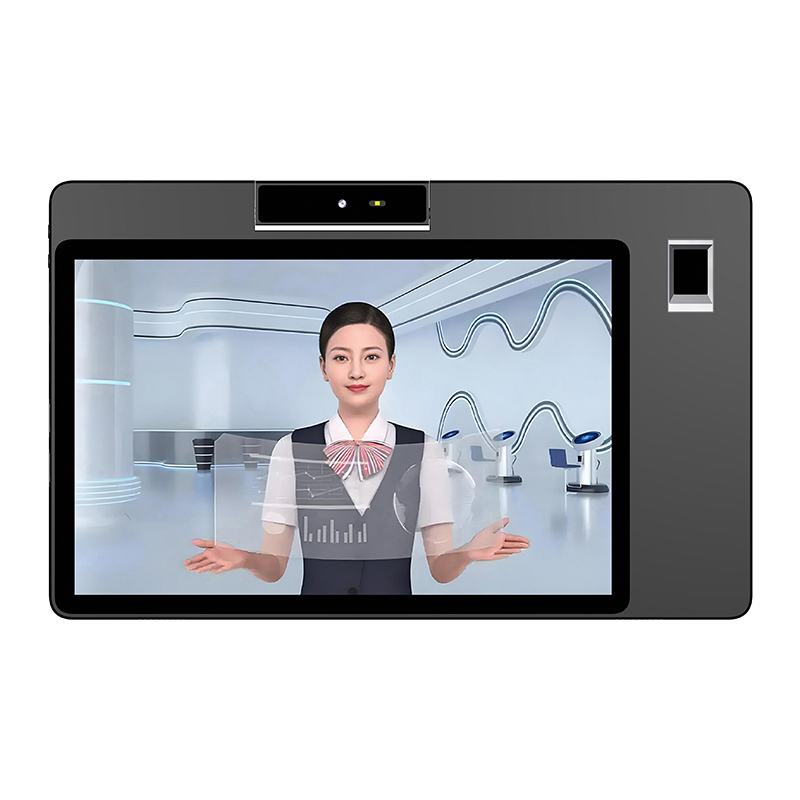
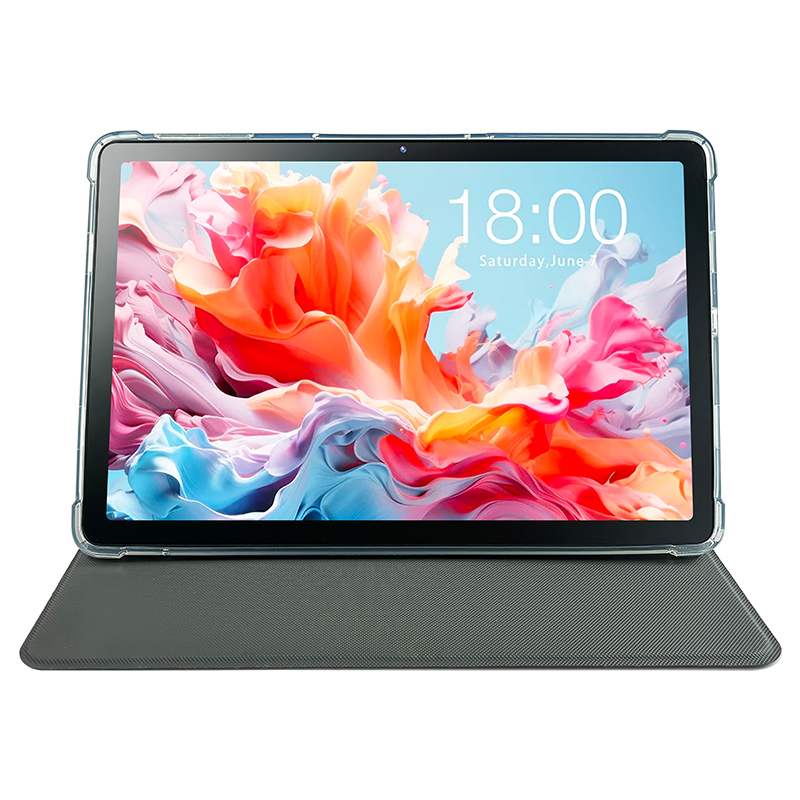
| The retailer wants a larger tablet screen and a dock that can turn toward the customer. | TPAD Android POS tablet with an 11-inch display, rotating dock, and under-screen NFC. | Use the tablet with the intended counter layout and peripherals. For SoftPOS, confirm device and market support with the payment provider. |
If your customers need a handheld with more screen space, see how screen size changes day-to-day use in our NB60 vs NB80 handheld POS comparison.
Get a Model Recommendation
Share your market, the types of stores you sell to, and the checkout task they bring up most often. NORYOX can help you shortlist a configuration to evaluate.
2. Compare the Cost of a Sellable Setup
Ask for an itemized quote for the setup you intend to sell. A terminal with a lower unit price can cost more to put into service once you add a dock, power accessories, or a printer the customer needs. Software setup can also change the amount of work your team has to do before delivery.
Ask the supplier to confirm four items in writing:
- Base configuration. Get the exact model, Android version, memory and storage, and included hardware.
- Accessories and options. Confirm which printer or scanner configuration, dock, adapter, regional plug, and cables are included or priced separately.
- Software responsibilities. Agree on who installs the POS app and who handles integration if it needs to control a printer, scanner, cash drawer, or customer display.
- Order terms. Ask for sample availability, minimum order quantity, and estimated lead time for the configuration you plan to offer.
When a customer wants to keep existing equipment, send the supplier the exact peripheral models and connection methods. That gives both teams a clear starting point for compatibility checks. Our Android POS software integration guide explains what to verify for printers, scanners, and other checkout devices.
3. Approve the Sample Against a Real Sale
Install the version of the POS app your main customer segment uses. Connect the intended peripherals, scan a few representative products, and print the receipt layout the merchant expects. If the setup will be sold for cash checkout, include a cash sale so you can check the drawer as part of the transaction.
| Sample check | What counts as a pass |
|---|---|
| Open the POS app using the intended installation and sign-in process. | Staff can reach the sales screen and start a transaction. |
| Scan products, complete a sale, and print the receipt. | The correct items appear in the cart and the receipt is readable. |
| Test any required cash drawer, auto-cutter, or customer display during the sale. | Each device responds at the expected step of the checkout. |
| Restart the terminal and repeat the sale. | The app and required hardware work again using the instructions you plan to give customers. |
Keep a record of the model, firmware build, app version, and peripheral models you tested. If something fails, note who will resolve it and repeat that check before approving the sample. For multi-store projects, add a device enrollment and app update test. See our guide to managing Android POS devices across multiple retail locations.
Discuss a Sample Test
Send your app version, peripheral models, and the checkout functions your team needs to verify.

NORYOX DP11 POS Demo | Barcode Scanning, Receipt Printing and Cash Drawer Operation
4. Confirm What You Can Reorder and Support
Once the sample passes, attach its approved configuration to the purchase order. Include the exact model, firmware, hardware options, plug type, and accessories. Ask how the supplier will notify you if a later batch requires a component or firmware change. If that change affects a workflow you tested, agree on what to retest before approving the revised configuration.
Confirm after-sales responsibilities at the same time. If a merchant reports a printing fault, your team should know what evidence to collect, whom to contact, and how a repair or replacement would be arranged. These details help you decide whether the setup is practical to support across multiple customers.
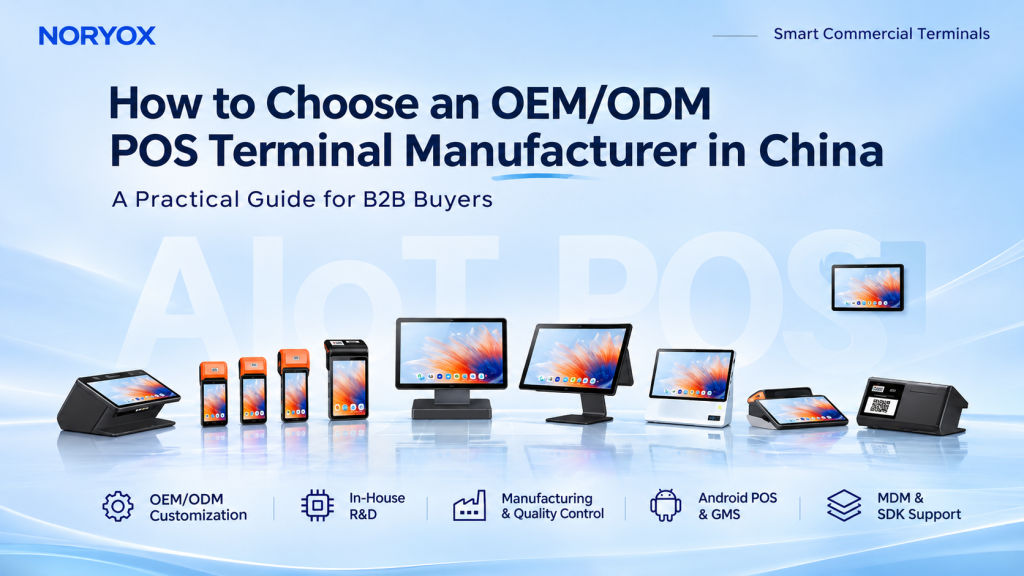
For private-label orders, record the approved logo, packaging, and any app preinstallation requirements. If you are still assessing manufacturing partners, use our guide to choosing an OEM/ODM POS terminal manufacturer to review the supplier’s manufacturing and customization capabilities.
Frequently Asked Questions
What if my customers use different POS apps?
Test the app used by the customers you expect to serve first. Record the version and functions verified so your sales team can explain what was tested. Run the relevant checkout checks again when a project uses a different app or peripheral setup.
What should I send when asking for a distributor quote?
Include your target market, current sales channels, intended checkout setup, preferred model, and estimated first-order quantity. If you have already approved a sample, attach the configuration so the quote covers the same hardware and accessories.
Request a Distributor Quote
If you plan to add NORYOX terminals to your catalog, tell us where you sell, which customers you serve, and how many units you expect to order. We can discuss model selection, NORYOX brand distribution, and bulk pricing.