

Choosing Android POS hardware is only the first step for software providers and system integrators. The real challenge is ensuring that existing applications work reliably with built-in printers, barcode scanners, customer displays, and other peripherals.
Successful Android POS software integration requires more than installing an APK. Incompatible SDKs, unsupported hardware interfaces, or incomplete testing can delay deployment and increase integration costs. These issues become especially important when preparing devices for multiple retail locations.
This guide outlines six practical steps to evaluate Android POS compatibility, obtain the necessary SDKs, integrate printers and scanners, and test essential checkout functions. It also covers peripheral features such as NFC, dual-screen displays, and cash drawer control.
Start by defining your software requirements and identifying the hardware functions your application needs to support.

Watch the NORYOX DP11 demonstrate NFC operation, barcode scanning, dual-screen functionality, and cash drawer opening in a retail checkout environment.
Step 1: Define Your POS Software and Hardware Requirements
Before selecting an Android POS terminal, identify how your software will interact with the hardware during daily operations.
A retail checkout application may need barcode scanning, receipt printing, and cash drawer control. A restaurant POS application may also require customer-facing displays, order printing, and additional peripheral connections.
Start by confirming these requirements:
- Software environment: Android version, APK compatibility, and required system permissions.
- Receipt printing: Paper width, receipt layout, automatic cutting, and printing frequency.
- Barcode scanning: Supported barcode formats and how scanned data enters the application.
- Customer display: Information that needs to appear on the secondary screen.
- Other peripherals: Cash drawers, NFC readers, and external devices.
- Deployment: Number of terminals, software updates, and remote device management.
Documenting these requirements early helps software providers and hardware suppliers identify potential compatibility issues before sample testing.
Step 2: Check Android Compatibility and Obtain the Required SDKs
Installing an Android application successfully does not guarantee that every hardware function will work.
Many POS terminals use manufacturer-provided software development kits (SDKs) or APIs to communicate with integrated peripherals. These interfaces allow applications to access supported hardware functions without managing every device component directly.
Before integration, confirm the Android version, application permissions, available SDK documentation, and supported peripheral interfaces.
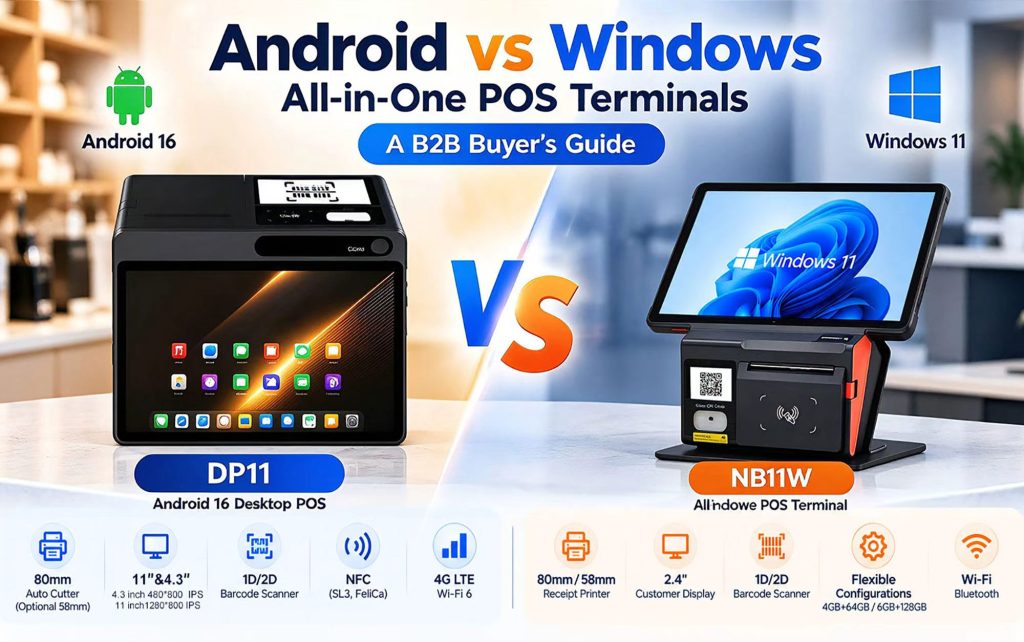
For example, the NORYOX DP11 runs Android 16, and NORYOX’s technical team can provide printer and barcode scanner SDK documentation for integration evaluation.
Software developers should review the documentation before implementation and confirm whether their existing application architecture supports the required interfaces.
For web-based POS applications, additional verification may be necessary because browser-based printing and native Android peripheral access can follow different integration methods.
Step 3: Integrate the Built-In Receipt Printer
A built-in receipt printer reduces the need for a separate printing device, but reliable printing still depends on software compatibility.
Developers should first identify the printing interface supported by the terminal and obtain the relevant SDK or API documentation.
The next step is to test the complete receipt-printing process, including:
- Printing text, prices, and transaction totals.
- Generating barcodes or QR codes when required.
- Formatting receipts for the selected paper width.
- Controlling automatic cutting where supported.
- Handling paper shortages, printing interruptions, and repeated transactions.
Printer configuration also matters. A 58mm printer may suit compact receipts, while an 80mm printer provides more space for detailed transaction information.
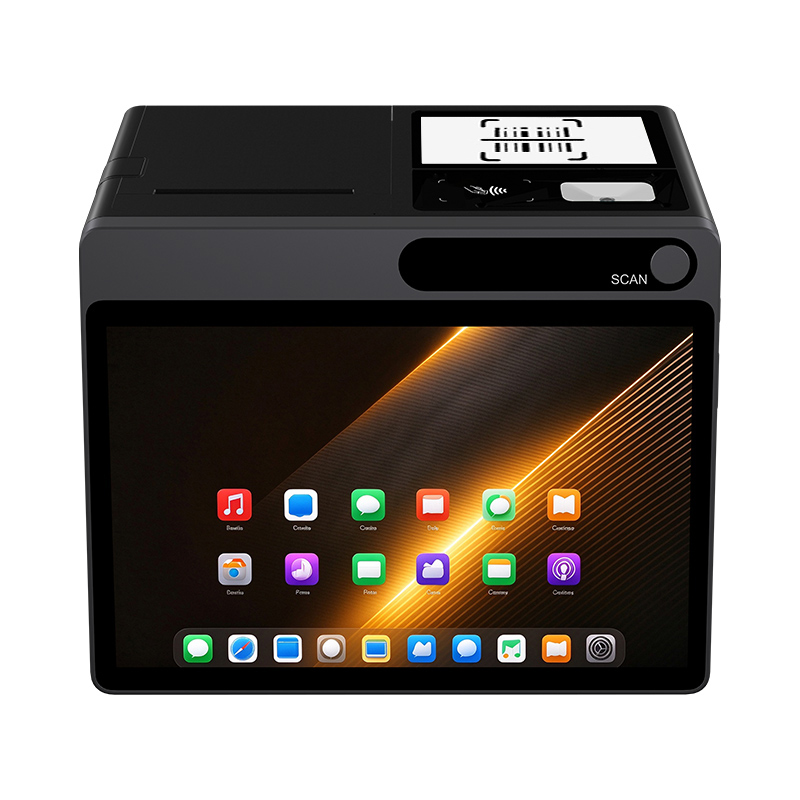
The NORYOX DP11 offers an integrated receipt-printing configuration with 80mm and optional 58mm printing. Its built-in printer and automatic cutter make it relevant for fixed checkout applications.
However, developers should confirm the exact command interfaces and SDK functions for their selected hardware configuration before implementation.
Step 4: Connect the Barcode Scanner and Other Peripherals
A complete Android POS software integration project often involves more than receipt printing.
Barcode Scanner Integration
An integrated barcode scanner can simplify checkout by eliminating the need for an external handheld scanner.
Depending on the device architecture, scanned data may reach the application through keyboard-style input, an SDK, or another supported interface.
Developers should test barcode recognition, input focus, data processing, and scanning performance within their own applications.
The NORYOX DP11 includes an integrated barcode scanner, and scanner SDK documentation is available from the technical team.
Customer Display and Cash Drawer Control
Customer-facing displays can show transaction information, while cash drawer integration allows supported applications to coordinate drawer operation with checkout activities.
The DP11 features a secondary customer display and built-in control settings for peripheral functions. Its product demonstration also shows barcode scanning, dual-screen operation, and cash drawer opening.
For third-party software projects, the specific control interfaces and application permissions should be confirmed during integration testing.
NFC Functionality
NFC may support applications that require contactless interaction, depending on the installed hardware, software, and relevant certifications.
The DP11 demonstration includes an NFC function test. However, demonstrating NFC functionality does not automatically establish compatibility with every payment application or payment network.
Software providers should verify their intended NFC use case and any applicable payment certification requirements separately.
Step 5: Test the Complete Checkout Workflow
Individual hardware functions may operate correctly during demonstrations but still require testing within a complete POS application.
Before approving a terminal for deployment, software providers and system integrators should run a realistic checkout workflow using their own applications.
| Test Area | What to Verify |
|---|---|
| Application | Installation, startup, permissions, and stability |
| Barcode scanner | Accurate scanning and correct data input |
| Receipt printer | Receipt formatting, continuous printing, and cutter operation |
| Customer display | Correct transaction information and screen updates |
| Cash drawer | Drawer activation through the intended workflow |
| NFC | Required NFC functions and application compatibility |
| Recovery | Application restart, network interruption, and error handling |
Testing should cover both normal operations and common interruptions.
For example, developers should confirm what happens when printing fails during a transaction or when an application restarts before completing a checkout.
NORYOX’s DP11 operation video provides a useful overview of several integrated hardware functions, including scanning, NFC, dual-screen operation, and cash drawer opening.
These demonstrations can support initial hardware evaluation. However, successful deployment still requires testing with the buyer’s actual POS software.
Step 6: Prepare for Sample Approval and Bulk Deployment
After completing the initial integration tests, the next step is to document the approved hardware and software configuration.
For B2B projects, sample approval should cover more than the physical device.
A practical approval checklist includes:
- Confirmed Android and application versions.
- Approved printer, scanner, and peripheral configurations.
- SDK documentation and integration test results.
- Software installation and update requirements.
- Branding or application preinstallation requirements.
- Expected deployment quantities and technical support needs.
POS brands and solution providers should also discuss whether device management, software customization, or OEM/ODM services are required for their projects.
For example, NORYOX offers Android POS hardware and OEM/ODM customization services. Buyers evaluating the DP11 can discuss their application requirements with the technical team before proceeding with sample approval or volume purchasing.
This approach helps reduce integration uncertainty and establishes clearer expectations between the software provider and hardware supplier.
Frequently Asked Questions
1. Can I install my existing POS application on an Android POS terminal?
Yes, provided the application is compatible with the terminal’s Android environment. However, successful installation does not guarantee printer, scanner, or other peripheral compatibility. These functions should be verified using the manufacturer’s supported interfaces.
2. Does an Android POS printer require a manufacturer SDK?
Not always. Some printers support standard communication methods, while others rely on manufacturer-specific SDKs or APIs. The correct approach depends on the hardware configuration and supported interfaces.
3. Can a web-based POS application print directly to a built-in printer?
It depends on the terminal and its software integration options. Browser-based applications may require a supported printing bridge, native application component, or manufacturer-provided interface. Direct or silent printing should be confirmed through testing.
4. How can I verify barcode scanner compatibility with my POS software?
Test the scanner using your actual application. Confirm supported barcode formats, input methods, data accuracy, and application focus behavior. Request SDK documentation if your software needs direct scanner control.
5. What should I provide when requesting an Android POS sample?
Share your application type, Android version requirements, printing needs, peripheral integration requirements, and expected deployment quantity. This helps the hardware supplier recommend a suitable configuration and prepare for technical evaluation.
Conclusion: Validate Software Compatibility Before Deployment
Successful Android POS software integration requires clear application requirements, supported hardware interfaces, and practical testing.
By following these six steps, software providers and system integrators can evaluate printers, scanners, displays, and other peripherals before committing to larger deployments.
Evaluate Android POS Hardware for Your Software Project
NORYOX provides Android POS hardware solutions, including the DP11 desktop POS, with technical documentation available for supported printer and scanner integration.
Share your POS application requirements, peripheral needs, and expected deployment quantity with our team to discuss SDK availability, hardware configurations, and sample evaluation.