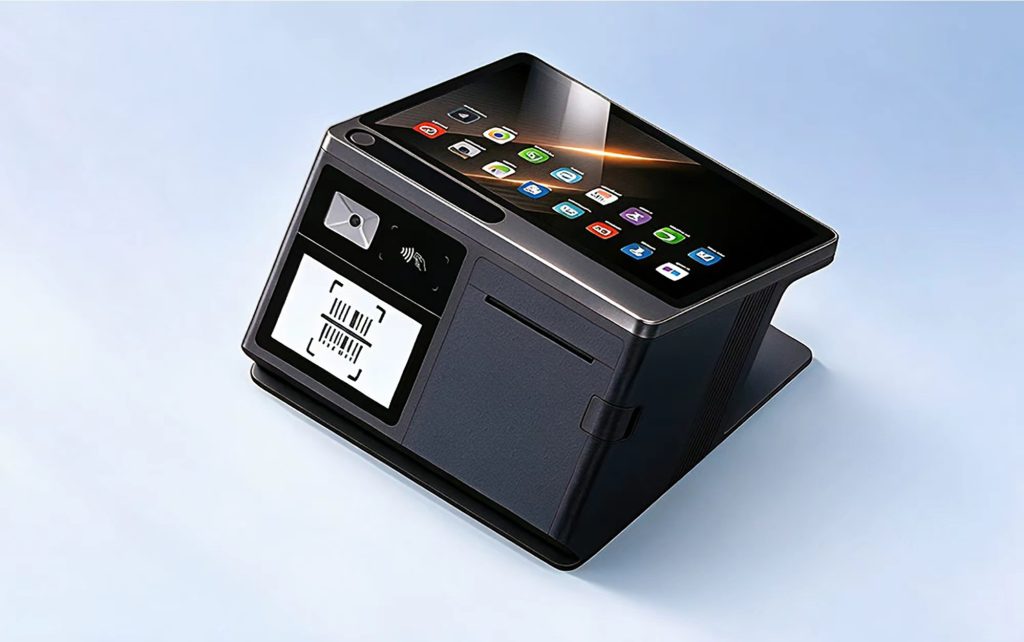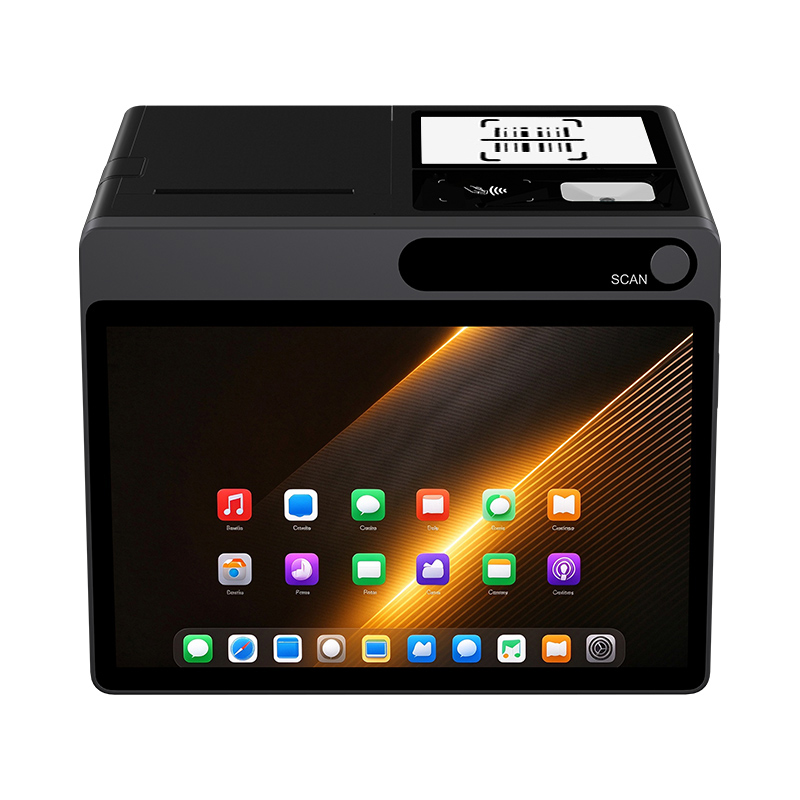


Short answer: To set up SoftPOS on an Android tablet in the UK, you need a GMS-certified Android 12+ tablet with full NFC protocols (ISO 14443 A/B, Mifare1, SL3, Felica), a merchant account with a SoftPOS-enabled acquirer (Worldpay, Visa Tap to Pay, Tyl by NatWest, Phos, Stripe, SumUp, etc.), and a stable internet connection. Install the provider’s app from Google Play, complete device attestation, and run a test transaction. The NORYOX TPAD 11″ — an Android 14 GMS tablet with enterprise-grade NFC — is SoftPOS-ready out of the box, requiring no hardware modifications.
Before You Start: The UK SoftPOS Hardware Checklist
Before diving into the setup steps, verify your tablet meets the softpos hardware requirements. Payment providers like CCV, Trust Payments, and Elavon have published strict device standards:
- Android 12 or higher (Android 14 recommended for longer support)
- GMS certification — mandatory for passing Google’s Play Integrity API device attestation
- Full NFC protocol stack — ISO 14443 A/B, Mifare1, SL3, Felica
- EMV Level 1 certified NFC controller — CCV recommends this for enterprise devices, anticipating it becoming mandatory
- Hardware-backed keystore (TEE or Secure Element)
- 8+ hours battery for a full retail shift
- Not rooted, not tampered — SoftPOS apps refuse to run on compromised devices
- Stable connectivity — Wi-Fi or 4G/5G; offline transactions are not supported
⚠️ Most consumer tablets fail one or more of these checks. The NORYOX TPAD 11″ passes all of them: Android 14 GMS, full NFC stack, 6000mAh pure cobalt battery, built-in 1D/2D scanner, and 4G LTE with dual SIM.
Step-by-Step: Setting Up SoftPOS on Your Android Tablet
Step 1: Choose and Prepare Your Acquirer
SoftPOS is not a standalone app — it’s provided by your payment acquirer or processor. In the UK, major providers include:
- Worldpay — SoftPOS by Worldpay app on Google Play
- Visa Tap to Pay — for acquirers and ISOs
- Tyl by NatWest — Phos by Ingenico
- Stripe / SumUp / Revolut Business / myPOS — Tap to Pay on Android
- Felix — Felix SoftPOS
Contact your acquirer, set up a merchant account, and request SoftPOS activation. They will send you a welcome email with login credentials and a device activation code.
Step 2: Prepare Your Tablet
- Enable screen lock — SoftPOS apps (e.g., Worldpay) require a device screen lock as a security measure
- Connect to Wi-Fi or insert a SIM — Ensure reliable internet connectivity
- Enable NFC in Settings → Connections → NFC
- Ensure the device is not rooted — No developer mode, no USB debugging
- Check for system updates — CCV warns: if your last update is over a year old, you may lose support
If using the TPAD 11″, all of these are pre-configured: screen lock prompt is native, NFC is enabled by default, and Android 14 with GMS ensures Play Integrity passes.
Step 3: Install the SoftPOS App
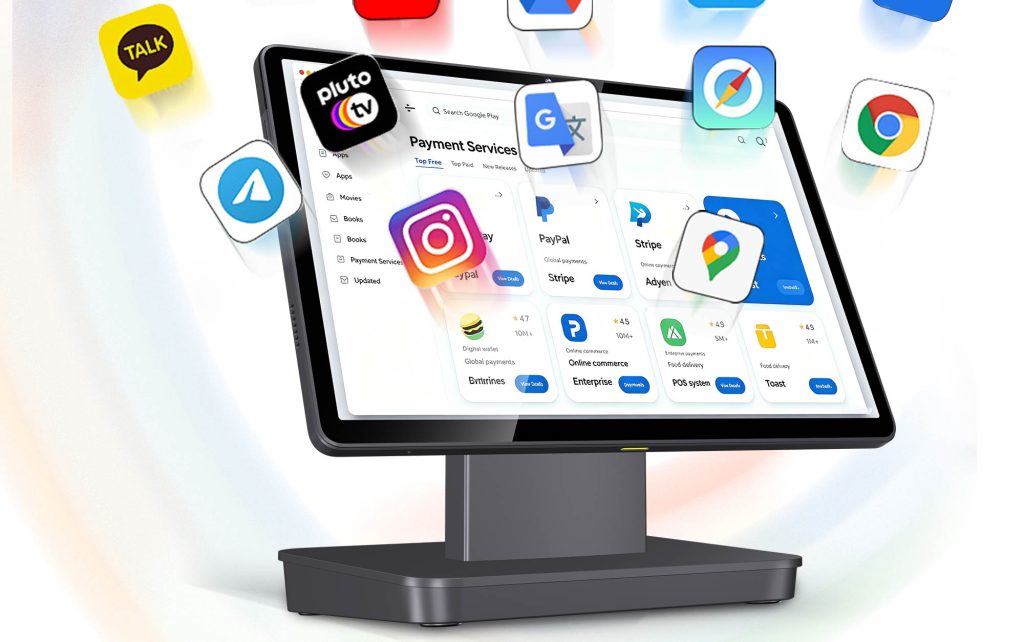
Open Google Play Store on your tablet and search for your acquirer’s SoftPOS app (e.g., “SoftPOS by Worldpay”, “Felix SoftPOS”, “Phos”). Tap Install.
⚠️ Critical: The app MUST be installed via Google Play. Sideloaded APKs will fail Play Integrity checks and the SoftPOS app will refuse to run. This is why GMS certification is non-negotiable.
Step 4: Launch and Pass Device Attestation
When you open the SoftPOS app for the first time:
- The app runs security checks — verifying the device is not rooted, not tampered, and passes Google’s Play Integrity API
- You’ll see a splash screen followed by a risk assessment
- If the app detects issues (no screen lock, outdated version, unofficial install), it will either warn you, limit functionality, or close automatically
- On the TPAD 11″, attestation completes in seconds thanks to its hardware-backed keystore and GMS certification
Step 5: Activate Your Device
- Open the welcome email from your acquirer
- Enter your Device code and Verification code in the app
- Accept the Terms of Service
- (Optional) Run a demo tap — place a test contactless card or phone against the NFC area. No funds are withdrawn
- Complete the “Almost there” screens reviewing your account details
- Tap Start taking payments
Step 6: Locate Your NFC Reader Zone
The exact location of the NFC antenna varies by device. On the TPAD 11″, the NFC sensor is centrally located under the screen — a discreet, hidden design that matches premium retail aesthetics.
During a transaction:
- Enter the amount in the app
- Tap Charge
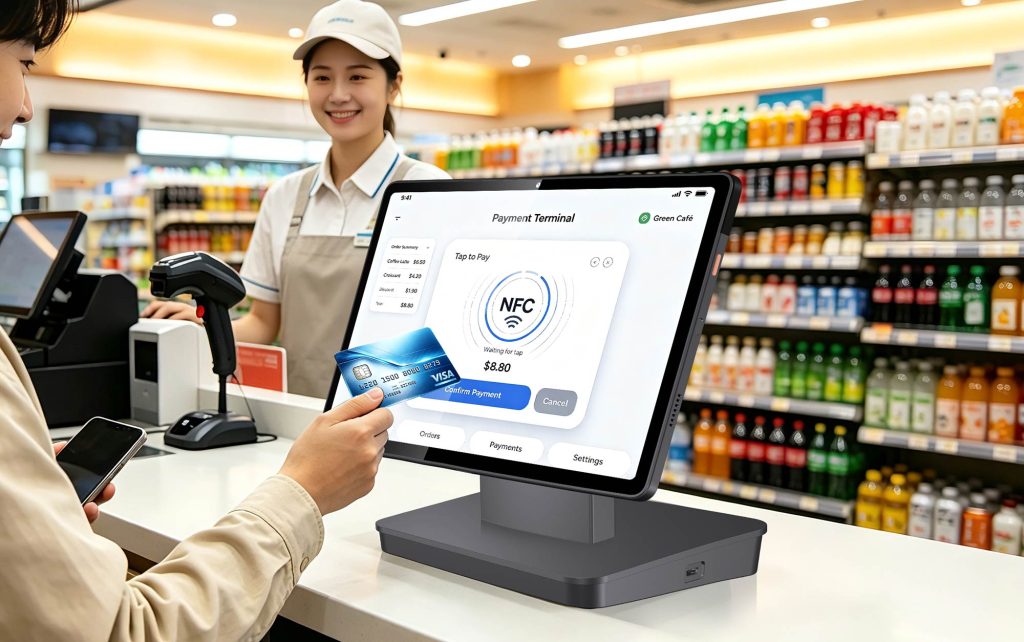
- Ask the customer to tap their card or phone against the centre of the screen
- Hold for ~2 seconds until you both hear the confirmation beep
- Send the receipt by SMS or email
Step 7: Connect a Receipt Printer (Optional but Recommended)
For UK retail compliance, a printed receipt is often expected. The TPAD 11″ connects to a thermal receipt printer via:
- USB-A (direct cable)
- RJ12 (for cash drawer integration)
- LAN (wired network stability)
- Bluetooth (for wireless printers)
Configure the printer in your POS app’s settings. For Felix SoftPOS and similar apps, Bluetooth pairing is the typical route for mobile setups.
Step 8: Test Transaction
Always run a real test transaction (e.g., £1.00) before going live:
- Enter a small amount
- Tap a contactless test card or phone
- Verify the payment succeeds
- Check the receipt (email/SMS/print)
- Process a refund to test reversal flow
Step 9: Multi-Device Deployment (For Chains)
If you’re rolling out across multiple stores:
- Use the TPAD’s MDM (Mobile Device Management) support to remotely push the SoftPOS app
- Configure app whitelisting and security policies
- Monitor fleet health remotely
- Each device activates with its own merchant credentials from your acquirer
CCV explicitly recommends sending a sample device for pre-rollout testing to verify EMV Level 1 compatibility on your specific hardware.
UK-Specific Considerations for 2026
The UK SoftPOS landscape shifted in March 2026: the FCA removed the mandatory £100 contactless cap. As banks gradually raise their limits, your SoftPOS hardware must be future-proof:
- Felica support ensures compatibility with international tourists’ mobile wallets
- SL3 support prepares you for newer secure card formats
- Android 14 GMS guarantees you receive Google’s latest security patches
- 6000mAh battery sustains longer shifts as transaction volume grows
The TPAD 11″ meets all of these requirements natively — no firmware hacks, no third-party dongles.
FAQ
Q: Can I set up SoftPOS on any Android tablet?
A: No. Your tablet must have GMS certification, Android 12+, full NFC protocols, and a hardware-backed keystore. Most consumer tablets fall short. See our guide:
Q: Do I need a merchant account first?
A: Yes. SoftPOS is provided by your acquirer. You must have a merchant account with a SoftPOS-enabled provider (Worldpay, Tyl by NatWest, Stripe, SumUp, etc.) before the app can be activated.
Q: Why does the app require a screen lock?
A: Payment security standards (PCI MPoC) require device encryption. SoftPOS apps like Worldpay will refuse to run unless a screen lock is configured.
Q: How long does setup take?
A: For a prepared GMS-certified tablet like the TPAD 11″: approximately 10–15 minutes — install app, enter credentials, run demo tap, and process a test transaction.
Q: Can I use the TPAD 11″ with multiple acquirers?
A: Yes. The TPAD runs native Android 14 with GMS, so you can install any UK SoftPOS app from Google Play — Worldpay, Felix, Phos, Stripe, SumUp, and more — on the same device.
Q: What if my tablet fails the Play Integrity check?
A: The SoftPOS app will either limit functionality or refuse to run. This typically happens with rooted devices or those lacking GMS certification. For the full hardware requirement checklist, read:
Conclusion
Setting up SoftPOS on an Android tablet in the UK is straightforward — if your hardware is right. The process boils down to: choose an acquirer → prepare a GMS-certified NFC tablet → install the app from Google Play → pass device attestation → activate with your merchant credentials → run a test transaction.
The biggest mistake UK retailers make is buying a cheap consumer tablet, then discovering it can’t pass Play Integrity or read certain contactless cards. By starting with a purpose-built device like the NORYOX TPAD 11″ — Android 14 GMS, full NFC protocol stack, 6000mAh battery, integrated scanner, and MDM support — you eliminate 90% of the setup friction.
Ready to deploy SoftPOS across your UK retail stores?📧 liujuan@sznyx.net